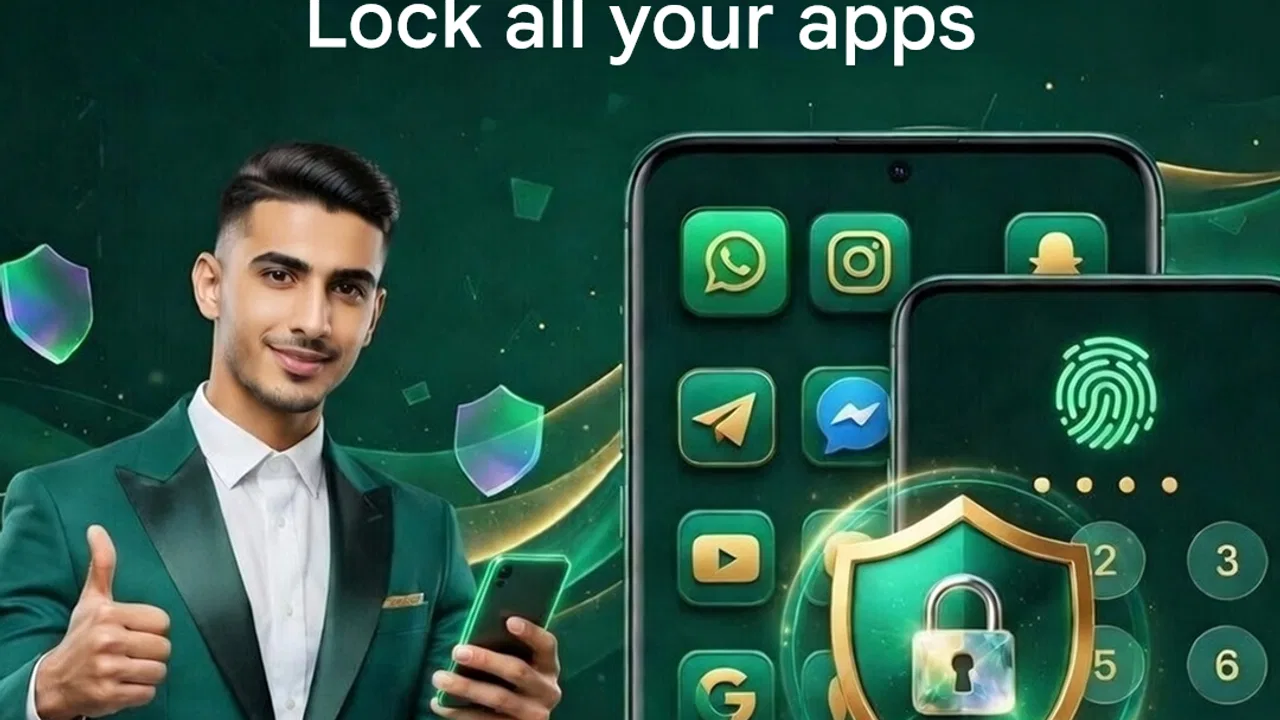
App Lock - Applock Fingerprint
- 4.0
- Rating
- 10.00M
- Installs
- Free
- Price

 Analysis by App-foxy
When I first opened App Lock - Applock Fingerprint, I had to adjust my expectations. This is not a video editor despite sitting in the Video Players & Editors category. It is a privacy utility from App X Tech, designed to keep selected apps behind a fingerprint, PIN, or pattern. That makes it relevant to creative work in a practical way: if I use my phone to record, edit, publish, or manage videos, the app can help protect the tools and accounts involved.
The appeal is easy to understand. A phone often contains unfinished clips, private photos, project conversations, editing drafts, and publishing apps signed into personal accounts. A normal screen lock protects the whole device, but it does not give me a separate barrier around individual apps. This utility focuses on that extra layer. It is free to install, rated for Everyone, and works on Android 8.0 or later. Its current version is 2.0.32, so compatibility is worth checking before making it part of an older phone workflow.
Protecting the creative starting point
For me, the most useful way to think about this app is not as a creator tool that makes content. It is a gatekeeper around the apps where content begins. If I am planning a short video, collecting reference images, writing a caption, or messaging someone about a project, those activities may be spread across several apps. Locking the relevant ones individually can reduce the chance that someone casually browsing my phone sees private material.
You May Also Like

 Blood Strike: 2.5 Anniversary
Blood Strike’s Loadouts Turn Every Drop Into a Tactical Gamble
A close look at Blood Strike’s custom loadouts: how fast access to signature weapons reshapes its battle royale rhythm, rewards preparation, and narrows the gap between fights.

 Pandora - Music & Podcasts
Pandora’s Music Is Easy to Start, but Harder to Recover
Pandora’s strength is its low-effort path from a seed to a station. Its weak spot is how much confidence it asks you to place in connection, setup, and quiet recovery.

 8 Ball Pool
 Is Built on Rivalries, Rematches, and Routine
A close look at the rivalries, rematches, shared routines, and unanswered safety questions that turn a quick pool match into a persistent mobile community.

 Samsung Music
’s Quiet Strength Is Playing What You Already Own
Its reach comes less from spectacle than from dependable access to a personal library. That simplicity is both the app’s strongest retention engine and its ceiling.

 AccuWeather: Weather Radar
AccuWeather Review: A Quick, Clear Forecast for Everyday Decisions
For everyday plans, the best forecast is the one you can understand quickly. AccuWeather makes rain timing, radar, and local conditions easy to act on, with a few trade-offs.

 Hill Climb Racing
Why Hill Climb Racing Still Turns Crashes Into One More Run
A tiny car, a bumpy hill and one more upgrade: Hill Climb Racing keeps resurfacing because its simple chaos makes every near-miss feel personal.
More From Our News Desk



A realistic example is a shared household. I might hand my phone to someone so they can look at a finished clip, but I may not want that person opening my gallery, social media account, cloud storage, or editing application afterward. A device-wide lock is too inconvenient in that moment because I have already unlocked the phone. An app-specific lock gives me a more focused boundary, provided I remember which applications need protection.
The fingerprint option is the most natural starting point for daily use. When it works with the phone's biometric system, unlocking should feel quicker than typing a code repeatedly. A PIN is useful when fingerprint recognition is unreliable, while a pattern may suit people who prefer a visual gesture. I like having those choices because different situations call for different methods: a fingerprint is discreet in public, a PIN is dependable when my hands are wet, and a pattern can be convenient when I am already holding the phone at an awkward angle.
There is also a small but important planning decision before locking anything. I would not protect every application immediately. I would begin with the places that contain the most sensitive creative material, then test the unlocking flow several times. If the barrier becomes annoying during routine editing, I might stop using it altogether. Selective protection is more practical than turning every tap into a security checkpoint.
The app has reached more than ten million installs and holds a 4.0 average from roughly thirteen thousand ratings, which suggests that the basic idea is familiar and useful to a broad Android audience. I would still treat those figures as a sign of popularity rather than proof that it will fit every phone. Biometric behavior, background activity, and the overall feel of an app lock can vary considerably between Android devices.
Where it fits in a content workflow
Imagine I am preparing a product video. The early stage may involve private reference shots, a draft script in a notes app, test footage in the gallery, and conversations with a client. I can use this utility to protect the apps that hold those pieces while leaving harmless tools accessible. That separation is more useful than simply hiding one finished file, because it protects the wider process rather than only the final result.
This is especially helpful when a phone is used by more than one person. A family member may need access to a camera or a music player, while I want to keep editing drafts and publishing accounts private. A freelancer may show a client a preview on the same device used for personal messages. In those cases, the lock is less about secrecy for its own sake and more about controlling the handoff.
Still, I would not confuse app locking with a complete backup or privacy strategy. It does not replace careful account security, sensible sharing habits, or a secure device lock. If a project is important, I would keep a separate copy in a trusted location rather than relying on an app barrier as the only protection. The utility can reduce casual access, but it is not a substitute for managing the whole workflow responsibly.
Making, revising, and handing off creative work
I use this section to consider what happens after a creative task is underway: how I keep drafts organized, make revisions without exposing unrelated apps, and prepare a phone before someone else sees the finished work. Thinking through that handoff also helps clarify when a simple app-level barrier is useful and when a separate sharing workflow makes more sense.
Using the lock during the making process
Once I move from planning into production, the main benefit is consistency. Creative work often involves interruptions: someone asks to borrow the phone, I show a clip to a colleague, or I pass the device around during a review. With selected apps protected, I can let another person interact with one part of the phone without automatically exposing everything else.
My preferred setup would be to secure the gallery or video editor first, then consider messaging and storage apps if they contain project discussions or source files. I would avoid locking the camera unless there were a particular reason to do so. The camera is usually an app I need to open quickly, and adding friction there can make me miss a shot. That is one of the trade-offs that is easy to overlook: stronger separation is helpful only when it does not obstruct the moments I am trying to capture.
Another practical tip is to test the chosen authentication method before starting a time-sensitive task. If I am about to record an event, I do not want to discover that I have forgotten the PIN or that a pattern is awkward to draw one-handed. Fingerprint access is convenient, but I would still make sure I remember the backup method. A security feature becomes a problem if it protects me from my own files.
The interface is best judged by how little attention it demands after setup. A good app lock should fade into the background. I would expect the initial configuration to require some thought because I need to decide which apps deserve a barrier, but the everyday experience should be quick. The store summary emphasizes speed as well as privacy, and that is the right standard to apply: if unlocking feels slow every time I switch between an editor and a gallery, the protection may become irritating rather than reassuring.
There is a useful distinction between protecting creation apps and protecting publishing apps. An editing tool may contain unfinished work, but a social platform or video channel may also provide access to an audience, an account, and the ability to publish immediately. For a creator, locking the publishing side can prevent an accidental post or an unwanted change when another person handles the phone. That is a more specific use case than simply hiding personal photos.
Iteration without losing control
Revision is where a privacy utility can quietly earn its place. During an edit, I may create several versions of the same clip, leave rough cuts beside finished exports, and exchange feedback through messages. The material can be more sensitive before publication than after it. Protecting the editor, gallery, and communication app together creates a controlled space for revision.
I would review the protected-app list whenever my workflow changes. If I stop using one editor and move to another, the old choice no longer matters, while the new editor may contain all the current drafts. This sounds obvious, but it is an easy maintenance task to forget. The lock only protects what I have selected, so the quality of the setup depends on keeping that selection current.
There is also a balance between privacy and collaboration. If I frequently ask someone to review a draft, repeatedly entering a PIN can slow the exchange. In that situation, I might prepare a dedicated preview file or use a separate sharing method instead of handing over the phone with broad access. App Lock - Applock Fingerprint is strongest when I control the device and want to limit casual browsing; it is less elegant as a collaboration system for several people.
For that reason, I would not recommend it as the main solution for a studio team or a creator who needs role-based access. It protects apps on one Android device, not individual project permissions across a group. A dedicated cloud workspace, account management system, or production platform would be better when several collaborators need different levels of access. The app is more suitable for personal phones, small freelance workflows, and situations where the device itself is the point of control.
Exporting and handing work to someone else
The final stage of a creative workflow is often a handoff. I may need to show a finished video, send it to a client, or let someone inspect the result on my phone. This is where I find the app's focused approach useful but not magical. I can unlock the specific gallery or player needed for the presentation, while keeping unrelated apps behind their own barriers.
Before a handoff, I would prepare the phone rather than improvising. I would close unrelated creative drafts, confirm which app contains the approved file, and decide whether the recipient needs to touch the device at all. If they only need to watch, showing the clip myself is safer than giving them unrestricted browsing time. The lock supports that decision, but it cannot replace it.
For publishing, the strongest case is preventing accidental access to an account that is already signed in. A quick tap by another person should not automatically lead to the upload screen, account settings, or private messages. I appreciate that this kind of protection is separate from the content itself: even if the finished video is harmless, the account behind it may still be personal or professional.
At the same time, I would not claim that an app lock guarantees that a protected file can never be copied or viewed. Once content is deliberately displayed or shared, control naturally decreases. The right expectation is narrower and more realistic: the utility helps block casual entry into selected apps when the phone is already unlocked. That is valuable, but it should not be treated as a secure delivery service for confidential client material.
What to expect from the free model
The app is free, which makes it easy to try without committing money at the beginning. It includes in-app purchases ranging from $13.99 to $54.99 per item. Because those purchases are part of the experience, I would look carefully at the screens shown during setup and decide whether the free version covers my needs before paying for anything.
My advice is to test the everyday path rather than judging the app only by its first launch. Lock one low-risk app, unlock it with the preferred method, restart the phone, and repeat the process during normal use. Then test a more important app only after I am comfortable with the recovery method. This approach avoids putting valuable drafts behind a configuration I have not yet understood.
The Everyone age rating also makes the app broadly approachable, but age suitability is not the same as suitability for every privacy need. A young user protecting personal conversations has a different requirement from a professional protecting client footage. I would choose the app for the simple, device-level barrier it offers, not because the age label implies advanced enterprise security.
Where it beats ordinary alternatives, and where it does not
The usual alternative is relying only on the phone's main lock screen. That is simpler and may be enough for someone who never lends out an unlocked device. App Lock - Applock Fingerprint becomes more useful when I regularly share the phone, demonstrate creative work, or need a boundary around only a few applications. It adds control without forcing me to lock the entire device every time I switch tasks.
Another alternative is hiding files or moving them into a private folder. That can be better when the concern is a small group of photos or videos rather than an entire application. If I need to protect a complete editing environment, conversations, and publishing access, an app-level barrier is more convenient. If I only need to conceal a handful of source files, a file-focused privacy feature may be less disruptive.
Built-in device security can also be preferable for people who want fewer moving parts. A system-level solution is usually easier to understand as one consistent security layer. This app makes more sense when the extra separation solves a real problem, such as lending an unlocked phone to a client or family member. I would skip it if I never share my phone and find additional prompts frustrating.
My creator verdict
After considering it as part of a creative workflow, I see App Lock - Applock Fingerprint as a practical privacy accessory rather than a production application. It does not record, edit, compress, publish, or organize video. Its contribution happens around those steps, by helping me decide which apps another person can open after I have unlocked the device.
The fingerprint, PIN, and pattern choices make the concept flexible, and the free entry point lowers the barrier to testing it. App X Tech has built something that can be useful for personal creators, freelancers, and anyone who handles private media on a shared or frequently borrowed phone. The strongest use case is selective protection: secure the gallery, editor, messages, storage, or publishing app that matters, but leave fast-access tools alone when speed is more important.
I would be cautious about depending on it for high-stakes confidentiality, team collaboration, or formal account security. I would also spend time testing the recovery path and reviewing the protected list as my workflow changes. Those small habits matter more than simply installing the app.
Overall, I would recommend trying it if your main problem is casual access to creative apps on an already unlocked Android phone. I would choose a built-in or file-specific privacy option instead when I want the simplest possible setup or need to protect only individual files. For the right situation, this app adds a useful pause between handing over a phone and handing over everything on it, and that is a worthwhile distinction for anyone making or managing personal creative work.
FAQs for App Lock - Applock Fingerprint
01What is App Lock - Applock Fingerprint and how does it work?
App Lock - Applock Fingerprint is a security application designed to protect your privacy by locking apps with a fingerprint, password, or pattern. Once installed, you can select which apps to lock, ensuring that only you or trusted users can access sensitive information on your device.
02Is App Lock - Applock Fingerprint compatible with all Android and iOS devices?
App Lock - Applock Fingerprint is compatible with most Android and iOS devices that support fingerprint scanning technology. However, it's important to check the app’s compatibility with your specific device model and operating system version before downloading to ensure full functionality.
03Does App Lock - Applock Fingerprint affect device performance or battery life?
The app is designed to be lightweight and efficient, so it typically does not significantly affect device performance or battery life. However, as with any app, it runs in the background, which can have a minor impact. Users should monitor usage to ensure it meets their performance expectations.
04Can I unlock multiple apps at once with App Lock - Applock Fingerprint?
Yes, you can unlock multiple apps at once using the fingerprint feature. This allows for quick and convenient access to all locked apps simultaneously, streamlining the process and enhancing user experience by reducing the number of steps needed to access multiple apps.
05What should I do if I forget my password or pattern for App Lock - Applock Fingerprint?
If you forget your password or pattern, App Lock - Applock Fingerprint offers recovery options. Typically, you can reset your credentials using a registered email or security question. It’s crucial to set up these recovery options during installation to avoid being locked out of your apps.
Pros
- Easy-to-use interface for quick setup.
- Supports fingerprint unlocking for security.
- Customizable lock settings for apps.
- Low battery consumption during use.
- Allows photo and video vault creation.
Cons
- Contains ads which may be intrusive.
- Limited features in the free version.
- Compatibility issues on some devices.
- Fingerprint feature may fail occasionally.
- No backup option for locked apps.

App Lock - Applock Fingerprint
Gallery